Pick an idea
Start with the thing you want to name. A template is ready for you.
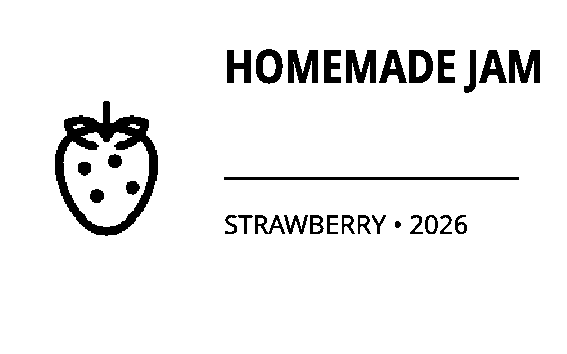
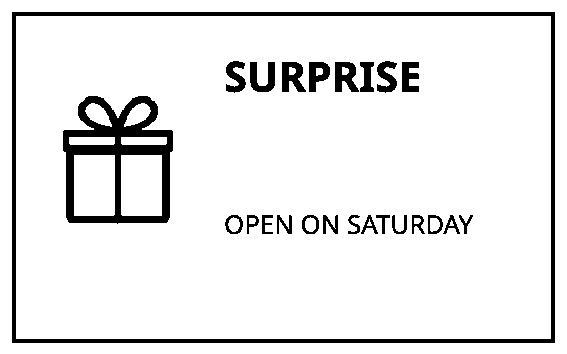
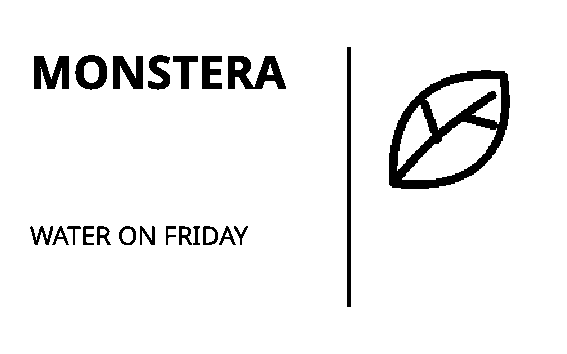
Name a jar, a box, a plant or a gift. Pick a template, add your words and see the exact image before you print.
First time? See the illustrated quick startNo account. Saved on this device.
IDEAS THAT STICK
Name a jar, a box, a plant or a gift. Pick a template, add your words and see the exact image before you print.
No account. Your design stays in this browser. This version prepares printing only for NIIMBOT M2-H.
Labi will bring you a ready-made template.
Colours live around the label. The printed image itself is black and white.
A PLACE TO START
You don't need design skills. Start with the thing you want to name.
SMALL CHANGES, REAL JOY
01 · 02 · 03
Start with the thing you want to name. A template is ready for you.
Change text, images or codes and arrange everything your way.
Download your design or image. Printing on M2-H is a separate action after reviewing the preview.
PRINTING AT HOME
Print on M2-H with 50 × 30 mm labels. For B1, design and download images; printing awaits testing. You can also prepare and keep a label without a printer.
Compare printer profilesWHY CHOOSE LABELADOR
Open a ready-made design, build a QR from simple fields, keep a collection of projects and make an image for your post. We handle those extra steps.
0installs to get started
0VIP upgrades in the current editor
1file for a selected label collection
| Your benefit | How Labelador makes it easier | The workflow in the other tool |
|---|---|---|
| Start right away.Skip another app installation. | Open a link and make a label. No install or registration. | NIIMBOT AppThe mobile app needs to be downloaded and installed. |
| No VIP gates along the way.No checking which item needs an upgrade. | The entire current editor, 67 designs and 408 icons are free. No paid locks on library items. | NIIMBOT AppOffers a free tier alongside paid in-app VIP services. |
| Skip the blank canvas.Start with a finished design, not just a paper size. | Pick a jar, gift or plant label. The layout, artwork and sample words are ready for your changes. | NiimBlueBuilt-in presets set label size and direction. You create or import the actual design yourself. |
| Wi-Fi QR without QR syntax.The same goes for contacts, SMS and email. | Choose the QR type and fill in plain fields, such as network name and password. We assemble its encoded content for you. | NiimBlueIts QR editor takes the finished content in a text field. You prepare Wi-Fi or vCard syntax yourself or with another generator. |
| Move a collection in one go.Fewer separate files to keep track of. | Select your designs and download one label collection. On import, choose what to add — no account and no overwriting existing work. | NiimBlueThe saved-label menu exports and imports one JSON label project at a time. |
| Get a ready-to-show image.Skip a separate layout tool for your post. | “Show off” frames your label and adds your caption. Download the finished graphic while the print image stays unchanged. | NiimBluePNG export saves the editor canvas. A post layout and caption are a separate step. |
These advantages concern the design and saving workflows shown. Labelador printing: M2-H 50 × 30 mm; B1 and D110 currently support design and export. Check your printer.
Checked on 29 Sep 2026: the NIIMBOT App listing and NiimBlue v2026.9.0 with the linked source. These are specific feature and workflow differences, not a timed benchmark or an overall winner claim.
NiimBlue also offers a free browser editor with local saving/export; these are not advantages over it. Its hardware coverage is broader. NIIMBOT offers more assets, cloud storage and a mobile printing app. We have not compared physical print quality.
Official listing: a downloadable app with VIP purchases. We do not claim every feature requires an account or payment.
Default presets contain paper geometry, resolution and print direction, rather than ready-made household designs.
QR parameters and a content field. No Wi-Fi/vCard forms were found in the inspected interface and source.
Single-project import/export and canvas image export. We do not claim NiimBlue lacks saving or export.
LABELADOR / NOTE
Start from a template or a blank label in Studio. Download the design and image without an account.
The colourful backdrops belong to the site. The label image is black and white, and physical printing requires separate confirmation.